Most technical problems on a first website look worse than they are. A warning in the browser, a blank page or a message you do not understand usually points to one setting, one file or one waiting period, and almost none of them damage the site itself. This guide covers the common website problems for beginners and how to fix them yourself, starting from the symptom you can see.
Each section does three things: it translates the jargon, helps you check whether it is a real problem, and gives you a short sequence to work through.
Why Almost Every Beginner Problem Is Fixable and Rarely Permanent
A website is a set of files, a database and a few settings. When something goes wrong, the cause is nearly always a setting that is off, a change that has not finished spreading, or the last thing you installed. Your content is still there.
Three habits make troubleshooting much easier:
- Change one thing at a time. If you change five settings and the problem disappears, you will not know which one fixed it, and you will not know what to do if it comes back.
- Note what you did last. Most problems start right after a change: a new plugin, a new theme, a pasted link, a domain setting. The most recent change is the first suspect.
- Wait where waiting is required. Some fixes take hours or days to show up. Repeating the same fix during that time only confuses things.
Keep a plain note on your computer with the date and what you changed. It costs a minute and saves a lot of guessing later.
My Site Isn’t Showing Up on Google (What “Indexing” Really Means and How Long to Wait)
The term: Indexing means Google has found your page, read it and stored it in its database. Until then, the page cannot appear in search results. Indexing is separate from ranking. A page can be indexed and still sit far down the results, because ranking is about how well it answers a search.
Is this actually a problem? Often it is not. A brand-new site can take anywhere from a few days to a few weeks to be found, and new pages on a new site tend to be slow. If your site went live recently, waiting is a normal part of the process. If you want a clearer picture of how visitors arrive, website traffic explained for people who aren’t techy covers it.
How to check:
- Type
site:followed by your domain into Google, with no space, for examplesite:yourdomain.com. If any pages appear, Google already knows your site. If you get nothing, it has not been indexed yet. - Search the exact title of one of your posts in quotation marks. This tells you whether that specific page is stored.
Fix-it sequence if a few weeks have passed:
- Check the visibility setting. Many website builders have a setting such as “Discourage search engines from indexing this site” or “Hide from search engines”. If it is ticked, untick it and save. This setting is often switched on while a site is being built and forgotten afterwards.
- Open Google Search Console. It is a free Google tool, and you verify that you own your site inside it.
- Use the URL Inspection tool. Paste in the address of a page. It tells you whether the page is indexed and, if not, why.
- Click “Request indexing” on the pages you most want found. This asks Google to look sooner, though it does not guarantee a date.
- Submit your sitemap. A sitemap is a list of your pages. Most website builders and SEO plugins create one automatically. Search Console has a Sitemaps section where you paste its address.
If the inspection says a page is “crawled, currently not indexed” or “discovered, currently not indexed”, Google has seen it but has not stored it yet. For a new site that is common. Keep publishing useful pages and check again in a couple of weeks.
The “Not Secure” Warning: What SSL Means and What to Check
The term: SSL (more precisely TLS, though everyone says SSL) is a certificate that encrypts the connection between your visitor and your site. When it is working, your address begins with https:// and browsers show a padlock or no warning. When it is missing or broken, browsers show “Not secure” or a full warning page.
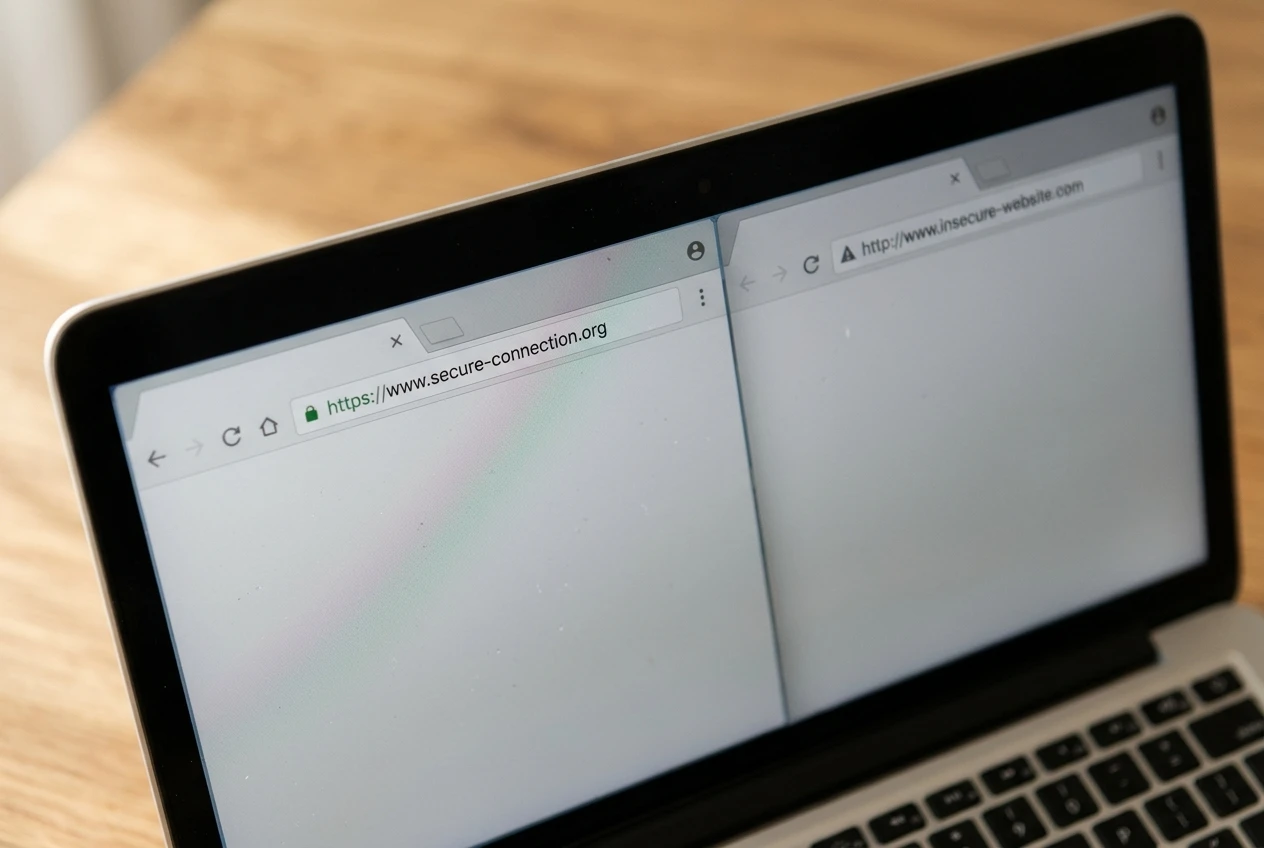
Is this actually a problem? Yes, because visitors will leave, but it is one of the easier problems to fix. It does not mean your site has been hacked.
Fix-it sequence:
- Check the address you typed. Try your domain with
https://at the start. If the site loads securely that way, the certificate exists and your site is simply being reached through the olderhttp://address. - Look in your hosting account for a section named SSL, Security or Certificates. Most hosts offer a free certificate you can switch on. If one is already listed, check that it is active and applied to your domain.
- Give a new certificate time. After a domain is first connected or changed, the certificate can take from a few minutes to some hours to be issued.
- Set your site address to https. In your site’s general settings, the site address and home address should both begin with
https://. - Look for mixed content. If the padlock is missing on only some pages, an image, script or link on those pages is still being loaded through
http://. Open the page, view the image’s address, and replace it with thehttps://version or re-upload the image. - Clear your cache. Delete your browser’s cache and any caching plugin’s stored pages, then reload.
One check that surprises people: if the warning mentions a certificate that is “expired” or “not yet valid”, your own computer’s date and time may be wrong. Fix the clock and try again.
Domain, Hosting, Theme, Plugin: Which Piece Is Causing Trouble?
A lot of beginner confusion comes from not knowing which of four separate parts is responsible. Here is what each one is:
- Domain: your site’s address, such as
yourname.com. You rent it, usually yearly. - Hosting: the computer where your site’s files and database live and are served to visitors. The domain points to it.
- Theme: the design layer that controls how your pages look.
- Plugin: an add-on that gives your site an extra feature, such as a contact form or an SEO tool.
A domain and hosting are sometimes bought from the same company and sometimes from different ones. If they are separate, the domain has to be told where the hosting is. That instruction is called DNS, and changes to it can take several hours, and sometimes up to a day or two, to spread across the internet.
The symptom usually points to the culprit:
What you see Most likely piece Browser says the site can’t be found, or shows a parked page from your domain company Domain or DNS settings Site is completely down or shows a server error Hosting Layout looks broken, menus or fonts changed Theme One feature stopped working, or a white screen followed a recent install Plugin
Fix-it sequence:
- Check domain renewal. Search your email for notices from your domain company. An expired domain stops working.
- If you changed DNS recently, wait before changing anything else.
- If the problem began after a plugin install or update, deactivate that plugin. If the site returns, you have found the cause. Look for an alternative or contact the plugin’s support.
- To test the theme, temporarily switch to a default theme your platform provides. If the problem disappears, the theme is the cause.
- If the whole site is down, check your hosting company’s status page or contact their support, since this is usually on their side.
Pages That Load Slowly, Broken Links and 404 Errors: Simple Checks You Can Do Today

Slow pages
Slow loading usually has a dull cause: images that are far too large. A photo straight from a phone can be several megabytes, which is much more than a web page needs.
- Test a page with Google’s free PageSpeed Insights. Paste in the address and read the suggestions, ignoring the ones you do not understand.
- Resize and compress images before uploading, or use a compression plugin or your platform’s built-in option.
- Remove plugins you do not use. Each active plugin adds work for the site.
- Test on mobile data. Slow on your phone away from wifi is more meaningful than slow on one old laptop.
A page that takes a couple of extra seconds on a poor connection is not an emergency. A page that stalls or fails to load for everyone is.
404 errors
The term: 404 means “page not found”. The server is working, but nothing exists at the address that was requested.
Is this actually a problem? It depends on where the broken address came from. A 404 that you caused by mistyping a URL is nothing to fix. A 404 reached through your own menu, a link inside a post or a search result is worth fixing.
Fix-it sequence:
- Compare the address to the page’s real address, letter by letter. A stray character, a capital letter or a missing word in the page’s slug (the last part of the address) is the usual cause.
- Check whether the page was renamed or deleted. Changing a post’s title can change its address. Restore the old address, or set up a redirect from the old one to the new one.
- Re-save your permalinks. In WordPress, go to Settings, then Permalinks, and click Save without changing anything. This refreshes the rules that match addresses to pages and clears many sudden 404s.
- Fix links you control. Edit the menu item or the link in the post to point to the correct address.
Locked Out or Lost Your Login: Getting Back In Without Panic
Being locked out is alarming because it feels like losing the whole site. The site is untouched, and you only need a way back to the door.
Fix-it sequence:
- Check the basics. Caps lock, the correct login address (many sites use
/wp-adminor a similar path on your domain), and whether your browser has saved an old password. - Use “Lost your password?” on the login page. Enter the username or email you used when setting up the site.
- Check spam and promotions folders. Reset emails often end up there. Also try any other email addresses you might have used at setup.
- Wait if you have tried many times. Some sites and security plugins block further attempts for a while after repeated failures. Try again later, rather than guessing more.
- Use your hosting control panel. If the reset email never arrives, hosting accounts usually have tools to reset a site’s admin password or to log in directly. Your host’s support can walk you through it.
Afterwards, store your logins in a password manager or another secure place so this does not repeat. Include the login for your domain company, your hosting account and your site’s admin area. They are three separate accounts.
How to Ask for Help So You Get an Answer Quickly (and What to Screenshot First)
Help comes faster when the person answering can see what you see. Before you post in a community or message support, collect these:
- A screenshot of the whole browser window, including the address bar. The address often reveals the problem.
- The exact wording of any error message. Copy it or capture it. “It says something about a certificate” is much harder to work with than the full message.
- What you did just before it started. Name the plugin, setting or change.
- What you have already tried. This saves the other person from repeating your steps.
- What you expected to happen. “I expected the page to load over https” tells them what counts as fixed.
A good question reads like this: “After installing a contact form plugin this morning, my homepage shows a white screen. I deactivated the plugin and it came back. Screenshot attached. Is there a known conflict, or a setting I should check?” That gives the answerer a cause, a test result and a direction.
Post it once, in one place, and give people time to reply before posting again. Come back and say what worked, so the next beginner with the same message can find the answer.
If you are still deciding whether to build a site at all, read Start Here: Find Out If Affiliate Marketing Is Right for You Before You Spend a Dime.
